Windows Reference
Alt Code for Square Root — Type √ Using Your Keyboard
The Two Alt Code Methods for √
On Windows there are two distinct "Alt code" systems, and they work differently. Understanding which one you're using saves a lot of frustration.
Method 1 — Unicode Alt code (Alt + decimal): Hold Alt, then type the decimal Unicode code point on the numeric keypad. For √ the code point is U+221A = 8730 decimal. This works in apps that support Unicode input: Notepad, most text editors, browser address bars, and many others.
Method 2 — Word-specific (type hex + Alt + X): Works only in Microsoft Word. Type the hex code point 221A directly in your document, then immediately press Alt + X. Word replaces the code with the character.
Step-by-Step: Alt + 8730 Method
- 1Turn on Num Lock. The numeric keypad (the block of number keys on the right side of full-size keyboards) must be active. The Num Lock LED should be on. Without Num Lock, the keys move the cursor instead of typing numbers.
- 2Click where you want the symbol. Position your cursor in any text field — a Word document, an email, a browser text box, a spreadsheet cell.
- 3Hold down the Alt key. Do not release it until you have finished typing all four digits.
- 4Type 8730 on the numeric keypad. Type 8, 7, 3, 0 one at a time. You must use the numeric keypad, not the number row above the letters. Nothing will appear on screen while you type.
- 5Release Alt. The √ symbol appears at your cursor. If a different character appears or nothing happens, the application may not support Unicode alt codes — try the copy-paste method instead.
Laptop users: Most laptop keyboards do not have a dedicated numeric keypad. You may need to hold Fn while pressing the embedded numpad keys (usually on J, K, L, U, I, O, 7, 8, 9). Alternatively, use the Word Alt+X method or simply copy the symbol from this page.
Microsoft Word: Type 221A then Alt + X
This method only works in Word, but it's the most reliable approach since Word fully supports Unicode character input this way. It also works for any Unicode character — not just the square root symbol.
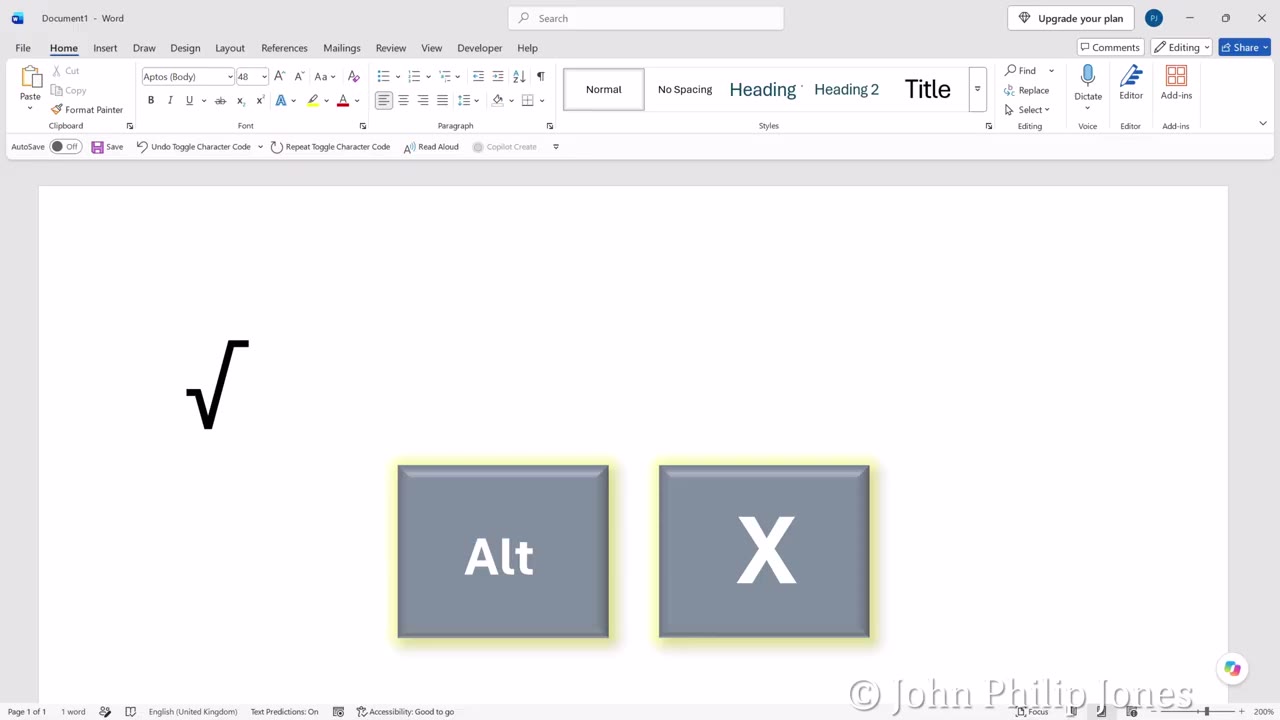
- 1Click where you want the symbol in your Word document.
- 2Type
221A(the hex Unicode code point for √). This text appears in your document temporarily. - 3Immediately press Alt + X (hold Alt, press X, release both). Word replaces "221A" with √. This conversion happens instantly.
Reverse direction: Pressing Alt+X on a character already in your document converts it back to its hex code point. This is handy for checking any symbol's Unicode value.
All Methods at a Glance
| Method | Keys / Steps | Works in |
|---|---|---|
| Unicode Alt code | Alt + 8730 (numpad) | Most Windows apps with Unicode support |
| Word Alt+X | Type 221A, then Alt+X | Microsoft Word only |
| Character Map | Win → search "Character Map" → find √ → Copy | Everywhere (paste) |
| Copy from this page | Click "Copy √" above | Everywhere |
| Windows emoji panel | Win + . → search "radical" | Most text fields in Windows 10/11 |
Why There's No Classic 3-Digit Alt Code
The classic Alt codes (Alt + 1 through Alt + 255) map to the legacy Windows-1252 (CP1252) character encoding, which covers only 256 characters — mostly Western European letters and some special characters. The square root symbol √ is not among them; it lives at U+221A, which is outside that range.
Some websites claim Alt + 251 gives the square root symbol. This was true for very old DOS-era software using the PC-437 code page, but modern Windows applications do not use that encoding by default. Pressing Alt + 251 in most modern apps either does nothing or produces a wrong character. Do not rely on it.
The reliable rule: For any Unicode character, hold Alt and type its decimal code point on the numpad. For √ (U+221A = 8730 decimal): Alt + 8730. This is consistent and documented by Microsoft.
Frequently Asked Questions
What is the alt code for the square root symbol?
The Unicode alt code is Alt + 8730 — hold Alt and type 8730 on the numeric keypad. The hex code point is U+221A, so in Microsoft Word you can also type 221A and press Alt+X. There is no traditional 3-digit Alt code in the Windows-1252 range for √.
Why doesn't Alt + 251 work for the square root symbol?
Alt + 251 produced √ in the PC-437 DOS code page used in the 1980s and early 1990s. Modern Windows applications use Unicode or Windows-1252, not PC-437, so Alt + 251 either does nothing or produces a different character. Use Alt + 8730 instead — it works in modern Windows with Unicode support.
The alt code isn't working — what am I doing wrong?
Common causes: (1) Num Lock is off — turn it on before typing; (2) You're using the row of numbers above the letter keys instead of the dedicated numeric keypad — alt codes require the separate numpad; (3) The application does not support Unicode alt input — try Word or Notepad; (4) You're on a laptop without a separate numpad — use the Fn key combination or copy the character instead.
How do I type the square root symbol on a Mac keyboard?
On a Mac, the alt code system does not exist. Instead: press Option + V to type √ directly. You can also use Edit → Emoji & Symbols (Control+Command+Space) and search for "radical". See our Mac guide for full details.